![Polymath Taurus Navy Blue.svg]](https://support.polymath.network/hubfs/Polymath%20Taurus%20Navy%20Blue.svg)
In This Article
- Components of the Marketplace Dashboard
- Using The Marketplace Summary
- Using The Live Offerings Summary
- Using the Recent Offerings Cards
- Marketplace Dashboard - Video Demo
Components of the Marketplace Dashboard
The Marketplace Dashboard gives issuers an overview of investment activity for their marketplace. There are three main components: the Marketplace Summary, the Live Offerings Summary and the Recent Offerings Cards.
Using The Marketplace Summary
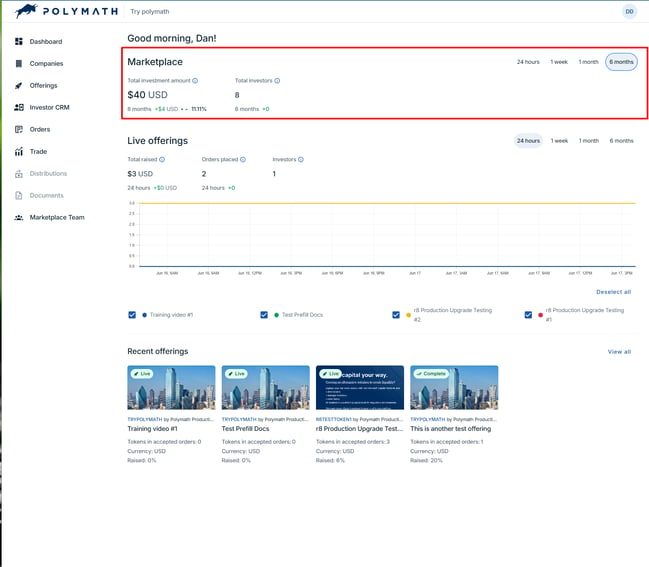
The Marketplace Summary displays the total investment amount raised by all assets and offerings in the Marketplace combined, as well as the total number of investors who have invested in an offering. By default, the total investment amount is displayed in the currency of the jurisdiction in which the marketplace is located.
You can also use the buttons on the right-hand side of the page to adjust the timeframe in order to see the total investment amount and number of investors over the past 24 hours, 1 week, 1 month or 6 months.
Using the Live Offerings Summary
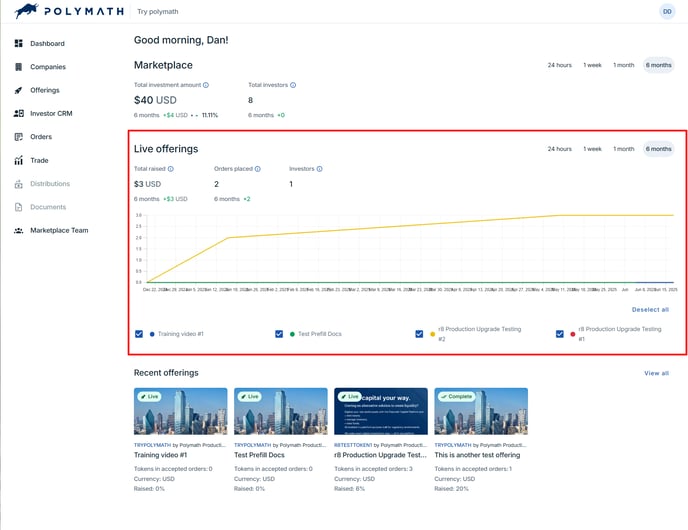
The Live Offerings Summary displays the total investment amount, total number of unique orders placed, and total number of investors for all currently live offerings. The total investment amount for all live offerings is also displayed in the graph.
You can also use the buttons on the right-hand side of the page to adjust the timeframe in order to see the data over the past 24 hours, 1 week, 1 month or 6 months.
You can show or hide the data for any specific offering by choosing to select or de-select an offering by clicking the checkboxes below the graph.
Using the Recent Offering Cards
The Recent Offering Cards give you a snapshot of any live or recently completed Offerings in your Marketplace. Each card contains a snapshot of how many tokens have been purchased (tokens in accepted orders), plus the currency and the percentage of the total offering that has been raised.
You can see more details about any offering by clicking on the card to navigate to its Offering page.
Navigating the Marketplace Dashboard - Video Demo
This video provides a walkthrough of the Marketplace Dashboard and the features and information contained within each component.